One-to-one remote assistance · Test release
Help that
keeps up.
Stay focused on your work.
Let someone see what you see and send advice and code right to your side.
Native Windows / macOS host · Browser helper
One workspace.
Another perspective.
YouShare your screen and audio
HelperSend advice and code
One invite connects you.
Easy to start
It starts with an invite.
- 01
Send an invite
Choose a display in the Windows or macOS app. Create a session to start sharing, then send the invite link to your helper.
- 02
They open a browser
Your helper opens the link to join and see your screen. Select Enable audio to listen. No app installation needed.
- 03
Keep advice close
Your helper sends text and code for you to read in the panel. End the session when you are done.
Connected, on both sides
See the work. Share an idea.
The browser helper
Watch the screen while exchanging text and code.
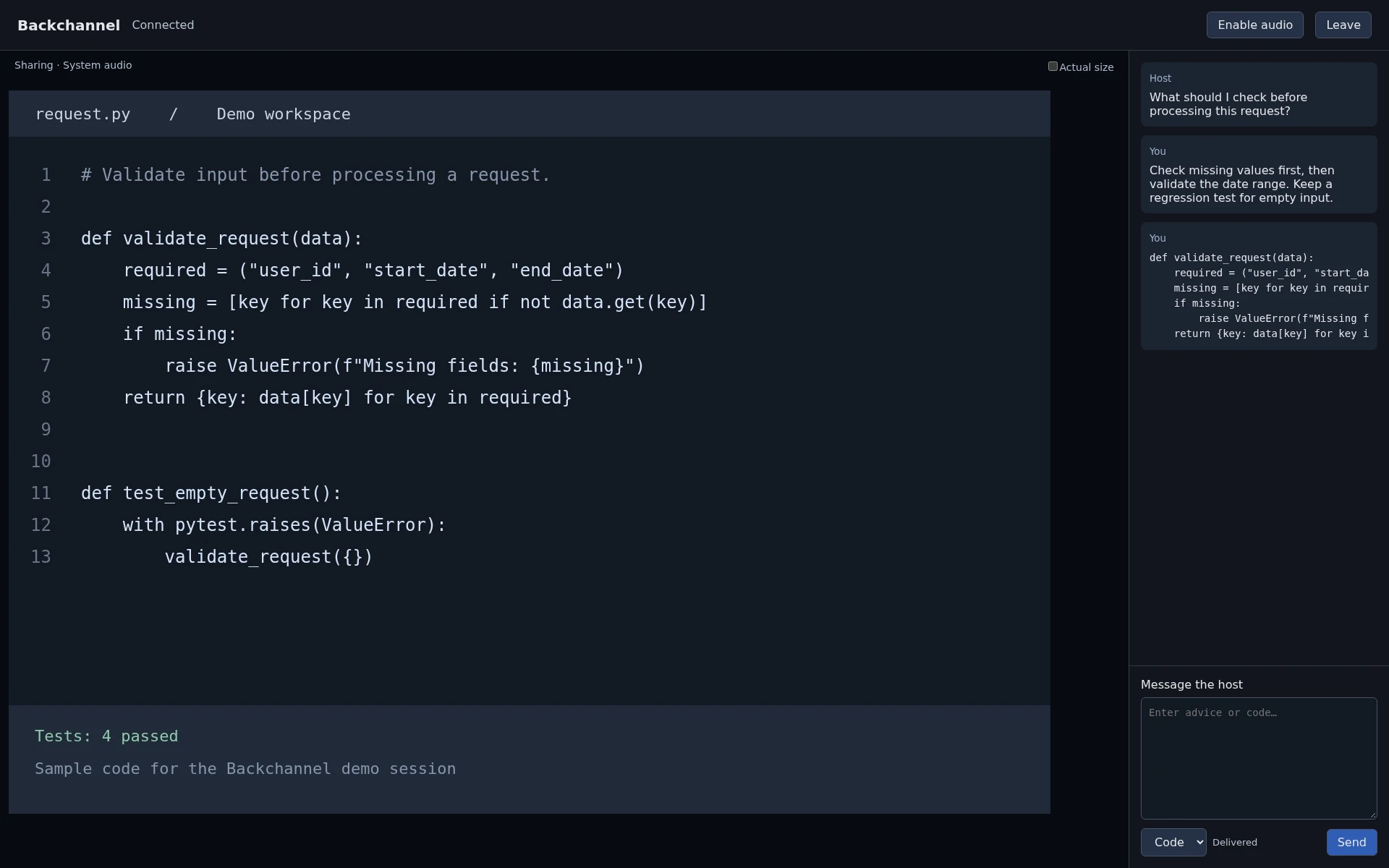
Stay in your workspace
The macOS app
Choose a display, copy an invite, and read replies in one native panel. Collapse it to a tiny window when you need more room.
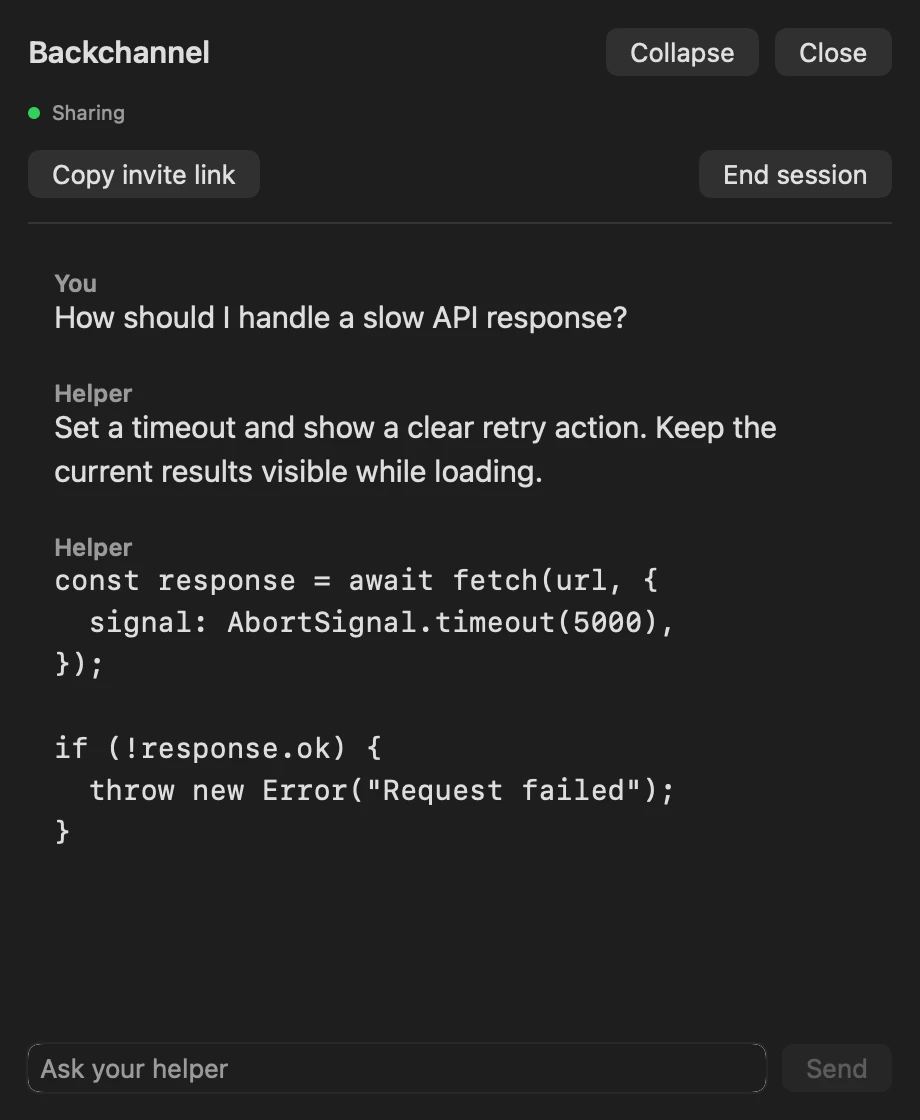
Ready when you are
Share your screen.
Bring ideas back.
Start a session with the Windows or macOS app.
Already have an invite? Open the link in your browser.
ZIP · 6.1 MiB · Updated November 13, 2026
Extract and run backchannel-windows.exe. No installation needed.
ZIP · Extract and open Backchannel.app.
Not notarized by Apple. macOS may block the app from opening.
Current status
Tested in steps. Still a pilot.
The relay and browser workflow have automated tests. Basic macOS use has been confirmed on a real Mac. Audio quality, display configurations, meeting capture behavior, and long-term reliability still need broader testing. On macOS, share a specific work window in your meeting app to keep this panel out of view.
Send invites only to your intended helper. The first helper to join is bound to the invite, and each session lasts up to two hours. There is no remote keyboard or mouse control. Audio and video pass through the relay without being saved as files. This is not end-to-end encryption.